Scanners are the logins your gate staff use in the ticketHUB scanner app. Each ticket scans only once, so there are no fakes and no double entry.
You need: an Android phone for each gate, with data.
1
Add a scanner
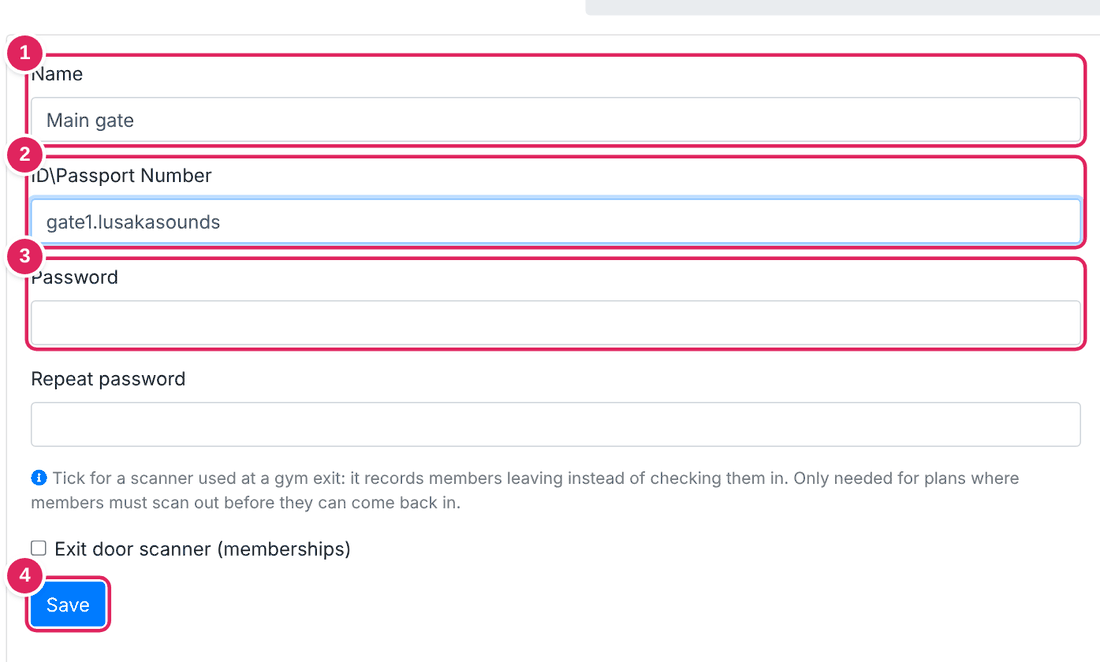
Open Scanner App › My scanners and click Add a new scanner.
1 A name, for example Main gate or VIP door.
2 A scanner ID that your staff sign in with.
3 A password (type it twice).
4 Click Save.
2
Give the scanner your event date
Edit your event. In the event date, pick the scanner under Gate scanners for this date (step 5 of creating your event), then save.
3
Scan at the gate
On the gate phone, open the ticketHUB scanner app and sign in with the scanner ID and password. Point the camera at each QR code. A valid ticket shows the name and ticket type. A ticket that was already used shows when it was scanned.
Good to know
- Make one scanner per gate or door, so you can see how many people came in at each one.
- Change a scanner's password after the event if staff change.
- Selling at the door too? Add a point of sale under My points of sale.